
Watch your agents in the web UI
Free and Pro
Your coordinator is the agent you talk to, which starts the other agents, hands out work and reports back to you. Thrum’s web UI is the page you open in your browser to see your agents and their messages. The web UI shows who is working, what they changed and what they said, so you check on your agents in one place and write to your coordinator from the same page. Steps 1 to 3 under How to use it cover what most people use; the rest is reference.
Open the web UI
Section titled “Open the web UI”Open the web UI in your browser first. There is no login. On Linux, run thrum daemon status and open the address on the ui line. On macOS, run thrum app, which starts Thrum as a menu-bar app. To have it start when you log in, run thrum app install-agent once. This is optional. The page opens on the Agents grid. If you have not set up Thrum yet, start with the quickstart.
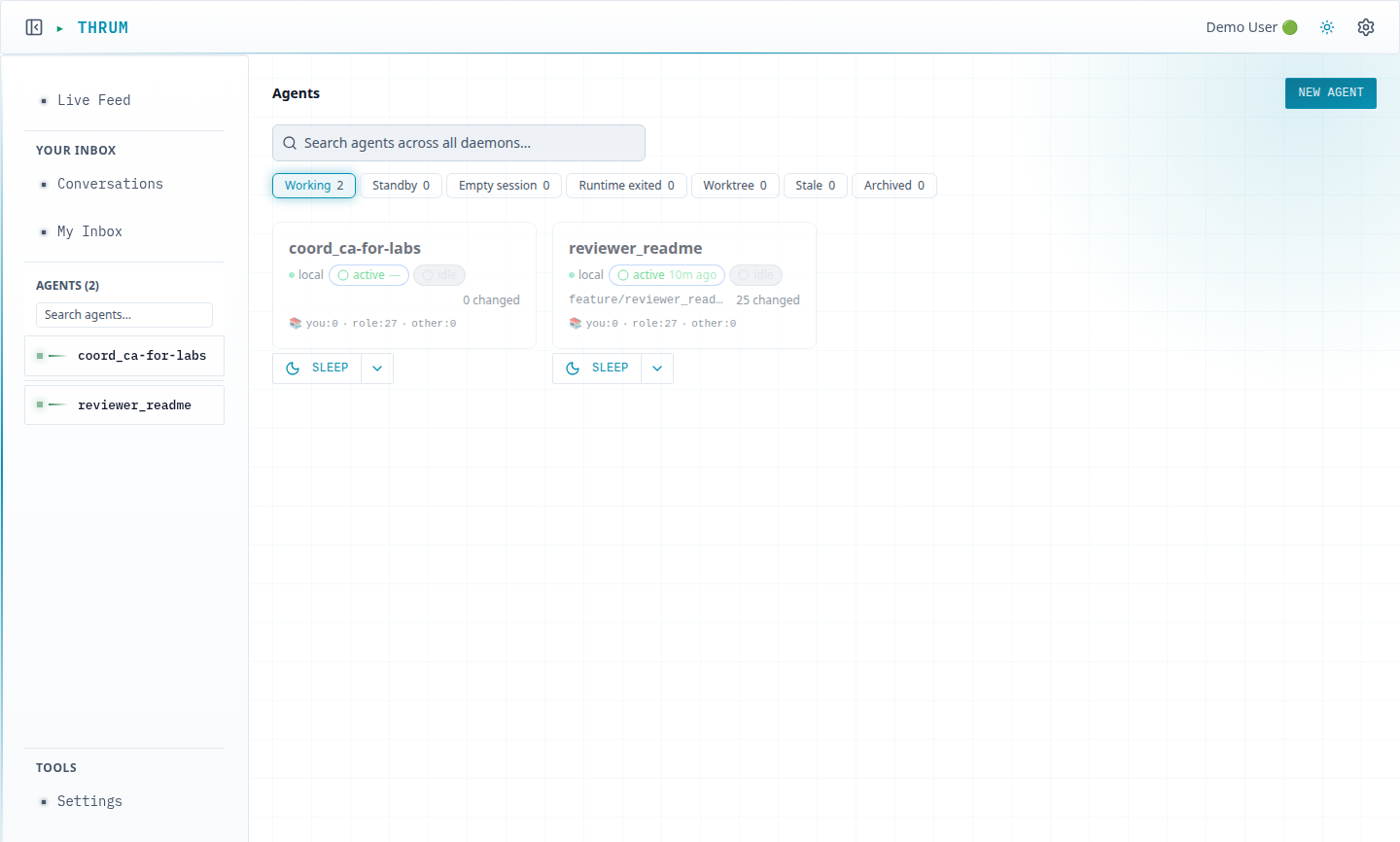
How to use it
Section titled “How to use it”- Check the fleet. Open the Agents grid. A card with
workingis busy. A card can showidlewhile its agent waits on a permission prompt. Answer permission prompts shows how to answer one. - My Inbox is your inbox in Thrum’s web UI. Talk to your coordinator. Click My Inbox. Leave To: at → coordinator and write in the box at the bottom. Click Send. Replies come back to the same inbox. Use Unread and Mentions to narrow it, and Mark all read to clear it. To write to another agent, click + Add and pick a recipient.
- Watch an agent work. Click its card.
- tmux keeps each agent running in its own terminal session. Terminal shows the agent’s live tmux session. The view is read-only, and watching it is Free for agents on this machine. Watching an agent on a paired machine is Pro. Run agents in tmux explains what you are looking at.
- Worktree lists the changed files. Click a file to see the diff.
- Messages shows that agent’s messages. Its header reads Viewing as: reviewer_readme (with the agent’s own name). Your own thread is in My Inbox. The other tabs are listed under Every part of the page.
Type to an agent (Pro)
Section titled “Type to an agent (Pro)”Under Terminal there is a message box. Press Cmd+Enter (Ctrl+Enter on Linux) or click Send. Send types the text into the terminal and presses Enter. Plain Enter adds a new line. Type puts the text in the terminal without submitting it, and the box keeps the text. Press Enter on the keypad to submit it. Below the box, Keys opens a keypad that sends single keys such as Enter, Esc, the arrows and Ctrl+C. On Free, the box and keypad stay on screen but are disabled, and the box says “Type to this agent in its own terminal (thrum tmux connect <name>). With Pro, you can type here.”
Here, on Pro, the coordinator is switched to another model: /model goes in with Send, and the model is picked with the keypad under Keys:
Type sends no Enter. Claude Code’s model picker acts on a single key as soon as it arrives: s picks the highlighted model for this session only, so it moved straight on to “Switch model?”, and the terminal confirms “for this session only”. Picking with Enter on the keypad instead makes it the default for new sessions as well, as the picker says. For a line of text, put it in with Type and press Enter on the keypad to submit it.
To type from your own terminal instead, which also works on Free, open a new terminal window and run thrum tmux connect with the agent’s name, for example:
thrum tmux connect reviewer_readmeRun it with no name instead to pick the agent from a list. Or message it from My Inbox (step 2).
Every part of the page
Section titled “Every part of the page”You don’t need this section to get started. It lists everything else on the page.
The Agents grid
Section titled “The Agents grid”The Agents grid. Each agent has a card. The card shows:
- the agent’s name
- small status labels: where it runs, its phase (for example
active,sleepingorstale) and its status (idle,working,blockedorstuck) - its Git branch, and a changed-files count such as
3 changed. A new agent that has edited nothing can still show a number above zero - its current intent, a one-line description of what it is doing
Tabs above the cards filter by state: Working, Standby, Empty session, Runtime exited, Worktree, Stale and Archived. Each tab shows a count. The search box finds an agent by name, role or module, in every tab and on every paired machine. The New agent button is in the top right.
The sidebar
Section titled “The sidebar”The sidebar. On the left:
- Activity Feed follows the whole project (see Following the whole project).
- Under Your Inbox, My Inbox is your own thread, in both directions. It lists the messages sent to you and the messages you send, including the kickoff prompt of an agent you create yourself.
- Below that is the list of your agents. Click a name to open it.
The agent view tabs
Section titled “The agent view tabs”Click a card to open the agent. The agent view has tabs: Manage, State, Memory, Files, Worktree, Messages, Terminal, Conversation, Preview, Dashboard and Queue. Drag a tab to reorder them. This page covers the ones you use most. On Free, the Conversation tab is not in the bar (see Free and Pro).
- Conversation (Pro) shows the agent’s session as a chat: what it said and which tools it ran. Click Resume live to follow the end.
- Files holds what Thrum keeps for this agent, such as its restart snapshots. Click a file to read it in Preview. The agent’s code is in Worktree.
- Preview shows one file: one you click on Files, or the page icon next to a changed file on Worktree. Pop out opens it in its own window. Preview does not run or display your application.
Following the whole project
Section titled “Following the whole project”Click Activity Feed. It lists agent messages, session events and registrations as they happen. Use Filter to show All, Messages only or Agent events only.
Creating an agent yourself
Section titled “Creating an agent yourself”Your coordinator creates agents when you ask, so you rarely need this. A role is what an agent is for, such as coordinator, implementer or reviewer. A module is a label for the part of the code an agent covers. To do it by hand, click New agent, choose a Role such as Implementer, fill in Module (without it the dialog says “Module is required”) and click Create. Cancel closes the dialog without creating anything. Choose Plain terminal under Start for an empty shell with no agent in it. To start an orchestrator, ask your coordinator: Start an orchestrator for this project. See Add an orchestrator.
Check it worked. The button reads Creating… while Thrum sets the agent up. Then the dialog closes and the agent’s card is on the Agents grid. If the card says identity only, the agent exists but has no running session. Click Relaunch on its card.
Settings
Section titled “Settings”Settings is at the bottom of the sidebar, under Tools. The daemon is Thrum’s background process on your machine. General shows the daemon’s health, notifications, Telegram, email, the vault, the backup passphrase and display options. Role Rules holds standing rules for each role. Pairing connects Thrum on another machine, or another project on this one.
Check that the daemon is healthy
Section titled “Check that the daemon is healthy”Open Settings. The General tab starts with Daemon Status. It has five lines:
- Status says
okwhen the daemon is healthy. - Version is the Thrum build the daemon runs.
- Uptime is how long the daemon has been running.
- Repo ID is the name of this project.
- Sync State shows whether Thrum syncs through Git.
local-onlymeans it doesn’t.
It updates by itself. If it says Failed to connect, the daemon has stopped. See Fix common errors.
Notifications
Section titled “Notifications”Notifications asks your browser for permission to show notifications. Once you allow it, your browser shows one when a message @mentions you, while Thrum’s web UI is open. Other messages don’t show one yet. To hear from your agents when you’re away, use the Telegram bridge.
Role Rules
Section titled “Role Rules”To give every agent of one role the same rules, for example that every reviewer checks the changelog, use the web UI.
- Open Settings, then Role Rules.
- In Role, choose the role, for example reviewer.
- Type the rules in Extra role rules, as plain sentences.
- Select Save rules.
Saving writes role-rules/<role>.md in your repository but doesn’t commit it. Commit it like any other file to keep it with your project.
Agents that are already running don’t see the change yet. Ask your coordinator: Apply the new role rules. Each agent picks them up at its next restart.
Rules saved here stay when Thrum rewrites the role templates. Edits made directly in .thrum/role_templates/ don’t.
Free and Pro
Section titled “Free and Pro”On Free you talk to your agents in their own terminals or message them from My Inbox, and use the web UI to watch them. You can watch the Terminal tab of every agent on this machine, read My Inbox, Messages and the Activity Feed, and write to your coordinator in My Inbox.
Pro adds typing into an agent’s Terminal (the message box and keypad), watching and typing into the Terminal of an agent on a paired machine, the Conversation tab and the sidebar Conversations page. Without Pro, the Conversation tab is not in the tab bar. A direct link to it, and the Conversations page, show “Conversation view is a Pro feature.”
Next steps
Section titled “Next steps”- Quickstart: install, start your coordinator and open Thrum.
- Answer permission prompts: what to do when an agent waits for your approval.
- Run agents in tmux: why the Terminal tab shows a tmux session.
- Message your agents: how agents send and answer messages.
- Work across multiple machines: see the agents of a second machine on the same Agents grid.
- Keep track of who’s doing what: each agent’s state, queue and optional dashboard.