
Work across multiple machines
Free and Pro
Pair your laptop with a build server or a second workstation once. Your coordinator is the agent you talk to, which starts the other agents, hands out work and reports back to you. After that, you ask your coordinator for work on the other machine, and it asks that machine’s coordinator, which does the work there.
There are two ways to pair: over your local network, for machines you trust on the same network, or over Tailscale, which works across networks. Thrum’s web UI is the page you open in your browser to see your agents and their messages. In both, you can ask the coordinators to do the pairing, or use the web UI. You can also pair two projects on one computer.
Before you start
Section titled “Before you start”- You own and trust both machines. A paired machine can read your agents’ messages and files by default, and on Pro, for machines on the same repository, their full conversations too. You can turn this off for one machine later by asking your coordinator to revoke its access. For how each connection is protected and what leaves your machine, see Security.
- Set up the second machine yourself first, in a terminal there: clone your project’s repository, install Thrum, run
thrum initand start its coordinator, as in the quickstart. The clone matters: each Thrum daemon belongs to one repository, and pairing doesn’t copy it. You do these parts by hand because your coordinator can’t reach the other machine until the two are paired. - If the second machine is a server with no screen, connect to it with
ssh, then runthrum tmux connectto open its coordinator’s terminal. After pairing you don’t need this: your coordinator messages that machine’s coordinator for you. - Both machines have the daemon running. The daemon is the background process that Thrum runs on each machine.
What it looks like
Section titled “What it looks like”This is an example conversation after pairing. A reviewer is an agent that checks another agent’s work, and an implementer is an agent that builds a change. Your coordinator’s wording will differ.
You:  Ask the coordinator on build-box to have a reviewer look at the auth module.
Coordinator:  I asked the build-box coordinator. It will start a reviewer there and tell me what it finds. I'll tell you when it replies.
(A few minutes later.)
Coordinator:  The build-box coordinator says its reviewer found two things: the token refresh has no test, and the error text names the user.
You:  Send both comments to the implementer on this machine.
Coordinator:  Done. @impl_auth has both comments.
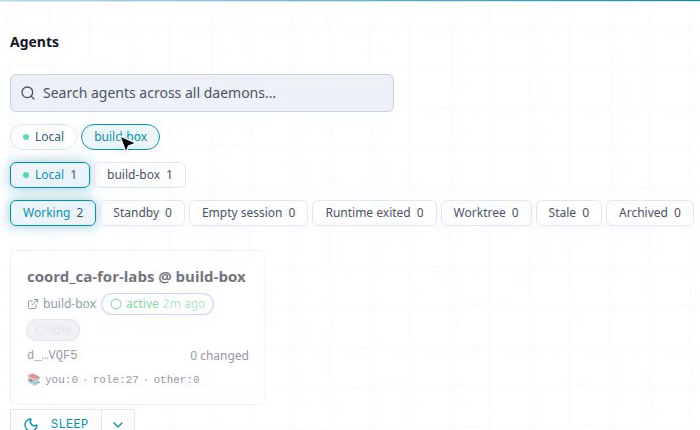
In the web UI, the Agents grid on your laptop lists the agents from both machines. Once more than one machine is present, a row of Local and per-machine buttons filters the grid by host. Each agent card shows local for your own agents and the other machine’s name for remote ones.
Pair the machines
Section titled “Pair the machines”Machine A is the one that starts pairing (your laptop, in the examples), and machine B is the one that joins (build-box). Both routes below work on Free. In both, one step crosses machines: you carry what machine A shows you to machine B. With the coordinators that is the pairing code alone, because the code includes machine A’s address. In the web UI it is the code and the address shown beside it.
Use Route 1, asking the coordinators, unless you prefer the web UI. It also works when machine B has no screen. Route 2 needs the web UI on both machines.
A pairing code expires after 5 minutes when your coordinator starts pairing, and after 2 minutes when you start pairing in the web UI, which shows a countdown. A code allows 3 attempts.
Pair over your local network
Section titled “Pair over your local network”Before you pair over your local network, check that both machines are on the same network and can reach each other.
If a firewall is on, allow incoming TCP connections on ports 9120 to 9139 on both machines. Opening a firewall is a step on your operating system, so you do it yourself.
Route 1: ask the coordinators (local network)
Section titled “Route 1: ask the coordinators (local network)”-
My Inbox is your inbox in Thrum’s web UI. On both machines. Ask the coordinator (in its terminal, or in My Inbox):
Turn on the LAN listener and restart the daemon.The listener is the setting that lets another machine connect to this one. It is off by default, so Thrum does not open your network until you ask. The daemon restarts in place.
-
On machine A. Ask its coordinator:
Start pairing over the local network with a machine I'll call build-box, and give me the code.It prints a pairing code.
-
On machine B. Give its coordinator the code from machine A (in its terminal, or in its My Inbox):
Join the pairing with this code: <code>.Replace
<code>with the code from machine A.
Route 2: use the web UI (local network)
Section titled “Route 2: use the web UI (local network)”This route needs the web UI on both machines. Use the same route on both machines: if machine B has no screen, use Route 1 on both.
On each machine, open Settings, then Pairing, then the LAN section.
- On machine A. Next to Listener: Off, select Enable. This restarts the daemon. To find machine A’s LAN address, ask its coordinator:
What is this machine's local network address?Type it in the LAN address box and select Start pairing. The section shows the address, the code with a Copy button, and a countdown. - On machine B. Select Enable the same way. Then, under Join with a code, enter machine B’s own LAN address (ask machine B’s coordinator the same way) in This machine’s LAN IP, machine A’s address in Peer address and the code in Pairing code, and select Join.
When it works, machine A shows “Connected to” machine B’s name, and machine B shows “Joined” machine A’s name. Each machine also lists the other under Peers.
Pair over Tailscale
Section titled “Pair over Tailscale”By default, Thrum uses the Tailscale app on each machine, so Tailscale must be running on both. Thrum needs a Tailscale auth key only for the first pairing, or if you run Tailscale inside Thrum. If Thrum asks for one on machine A, or machine A’s coordinator reports that it needs one, that step is yours, because the key is a secret. Create the key in the Tailscale admin console and put it in your project’s .thrum/.env on machine A, as THRUM_TS_AUTHKEY=…. Thrum reads that file only when its daemon starts, so if the daemon is already running, stop it and start it again (thrum daemon stop, then thrum daemon start). thrum daemon restart alone doesn’t pick up a new key.
The routes are the same as for the local network, with these differences:
- Route 1. On both machines, ask:
Turn on the Tailscale listener and restart the daemon.On machine A, ask:Start pairing over Tailscale with a machine I'll call build-box, and give me the code.Machine B joins as before. - Route 2. On each machine, open Settings, then Pairing, then the Tailscale section. On machine A, select Enable, then Start pairing. There is no address box to fill in. The section shows the address and the code. On machine B, select Enable, then, under Join with a code, enter machine A’s address in Peer address and the code in Pairing code, and select Join.
Pair two projects on one computer
Section titled “Pair two projects on one computer”Each project has its own Thrum daemon. If you run two projects on one computer, you can pair their daemons, so each project’s coordinator can ask the other. No network is involved.
Open Settings, then Pairing, then the Same machine section.
- In the first project. Select Start pairing. The section shows an address and a code.
- In the second project. Under Join with a code, type the address in Peer address and the code in Pairing code. Select Join.
When it works, the first project says “Connected to” the other project, and the second says “Joined”. Each project then lists the other under Peers. There is no Enable step here.
Use it
Section titled “Use it”After you pair, ask your coordinator to reach the other machine, naming the machine’s coordinator. For example:
You:  build-box is paired now. Tell me which agents are on it.
Coordinator:  Done. I can message the coordinator on build-box now. The agents on build-box are: coord_ca-for-labs.
Your coordinator’s wording will differ. After that, ask for work on the other machine through its coordinator. For example: Ask the coordinator on build-box to have a reviewer look at the auth module. Your coordinator asks build-box’s coordinator, which runs the work there. It tells you what comes back.
Check it worked
Section titled “Check it worked”Ask your coordinator: Which machines are paired?
You can also open the Agents grid. A row of Local and per-machine buttons appears under the search box. Each button shows the paired machine’s name: the name you gave it with the ask route, such as build-box, or the name in the “Connected to” or “Joined” message after the web UI route. The other machine’s coordinator is listed as coord_ca-for-labs @ build-box. In Settings, under Pairing, the Peers list shows each paired machine. Here build-box is listed under Peers:

If pairing fails
Section titled “If pairing fails”- A pairing code expires after 5 minutes (2 in the web UI) and allows 3 attempts. Ask machine A’s coordinator to start pairing again, and give the new code to machine B. In the web UI, “Pairing code expired. Start again for a new code.” means the same: select Start pairing again.
- If pairing is refused with “Cannot pair: this daemon has sync disabled”, see Sync troubleshooting.
- If a laptop moves to a new network and the link drops, ask your coordinator to repair the connection to that machine. If the repair fails, pair again.
- If a message or agent from the other machine does not arrive, see Sync troubleshooting.
- If your coordinator can’t reach Thrum, see Common errors.
Free and Pro
Section titled “Free and Pro”- Every plan: paired machines exchange messages and show each other’s agents. To get work done on a remote machine, ask your coordinator.
- Pro: watch a remote agent’s Terminal tab and send keys to it (the message box and keypad). Pro is checked on each machine, so this needs Pro on the machine the agent runs on. Pro also adds the Conversation tab for agents on a paired machine, on by default when both machines use the same repository.
- Always free: watching the Terminal tab of an agent on this machine.
Next steps
Section titled “Next steps”- Message your agents: how an agent on one machine messages another.
- Watch your agents in the web UI: see all your agents in one place.
- Keep context when an agent restarts: an agent on the other machine picks up where it left off too.