
Answer permission prompts
Free and Pro
An agent that asks permission to run something waits until someone answers. You can see the question in the agent’s Terminal tab and answer it there.
What it looks like
Section titled “What it looks like”A permission prompt is a question an agent asks before it runs a command or edits a file. It shows numbered choices, such as “Yes” or “No”. It appears in the agent’s Terminal tab with the first choice highlighted:
Bash command npm run test:integrationDo you want to proceed?❯ 1. Yes 2. Yes, and switch to auto mode 3. NoThe choices differ by tool and by command. The agent’s card may say idle while it waits, so check the Terminal tab.
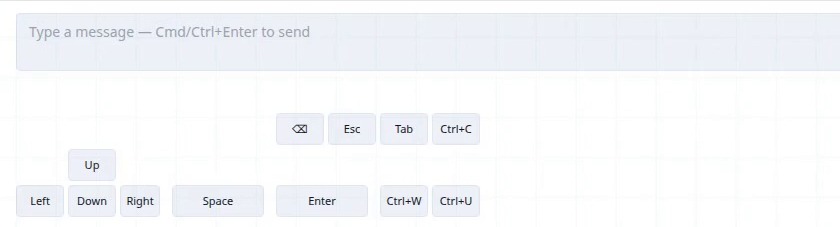
Prompts look different per tool. Here is one from OpenCode, with the choices Allow once, Allow always and Reject. The keypad below the message box is where you answer.

Under the terminal, the same tab has a message box and a keypad:
How to use it
Section titled “How to use it”- Open the agent’s Terminal tab. Click the agent’s card, then Terminal. If an agent has stopped and you are not sure why, look here first.
- Read the choices. The highlighted one is the default.
- Answer with the keypad (Pro). Press Enter for the highlighted choice. To pick another choice, move with the arrow keys as the prompt shows, then press Enter.
- Check it worked. The prompt is gone and the agent’s Terminal tab shows it running again.
On Free the keypad is disabled and the box says “Type to this agent in its own terminal (thrum tmux connect <name>). Thrum’s web UI is the page you open in your browser to see your agents and their messages. My Inbox is your inbox in Thrum’s web UI. With Pro, you can type here.” You can see the prompt in the Terminal tab. You can answer it from My Inbox once prompts arrive there as messages (When a prompt arrives as a message), or directly in your own terminal. For the direct route, open a new terminal window, not the one thrum tmux start took over, and run:
tmux keeps each agent running in its own terminal session.
# Open an agent's session by name:thrum tmux connect <name># Or pick the agent from a list:thrum tmux connectAnswer as the prompt shows, the same way as with the keypad: press Enter for the highlighted choice, or move with the arrow keys and then press Enter. Press one key at a time: in some tools a number key answers on its own, and an extra Enter can answer the next prompt. Then press Ctrl+B, then D to leave the session (Ctrl+B is tmux’s default prefix; if you changed it in your tmux configuration, use yours). The agent keeps running.
When a prompt arrives as a message
Section titled “When a prompt arrives as a message”When an agent waits at a prompt, Thrum can send you the prompt as a message in My Inbox. The sender’s name starts with supervisor_.
- In current versions,
thrum initturns this on for you. Check that it’s on, and turn it on once if it isn’t. - After that, a prompt that is still waiting after about 5 minutes arrives in My Inbox. It can take a minute or so longer.
- Your coordinator is the agent you talk to, which starts the other agents, hands out work and reports back to you. A prompt from your coordinator itself arrives straight away, unless another coordinator on the same machine can answer it.
The wording below is an example and differs by tool.
Check it’s on, or turn it on once
Section titled “Check it’s on, or turn it on once”To check, ask your coordinator (in its terminal, or in My Inbox): Are permission prompts set to come to my inbox? If not, send them to my inbox. If it asks for your name, use the name next to the inbox icon at the top of My Inbox, for example demo-user. It is not the display name in the top-right corner. No restart is needed.
The message
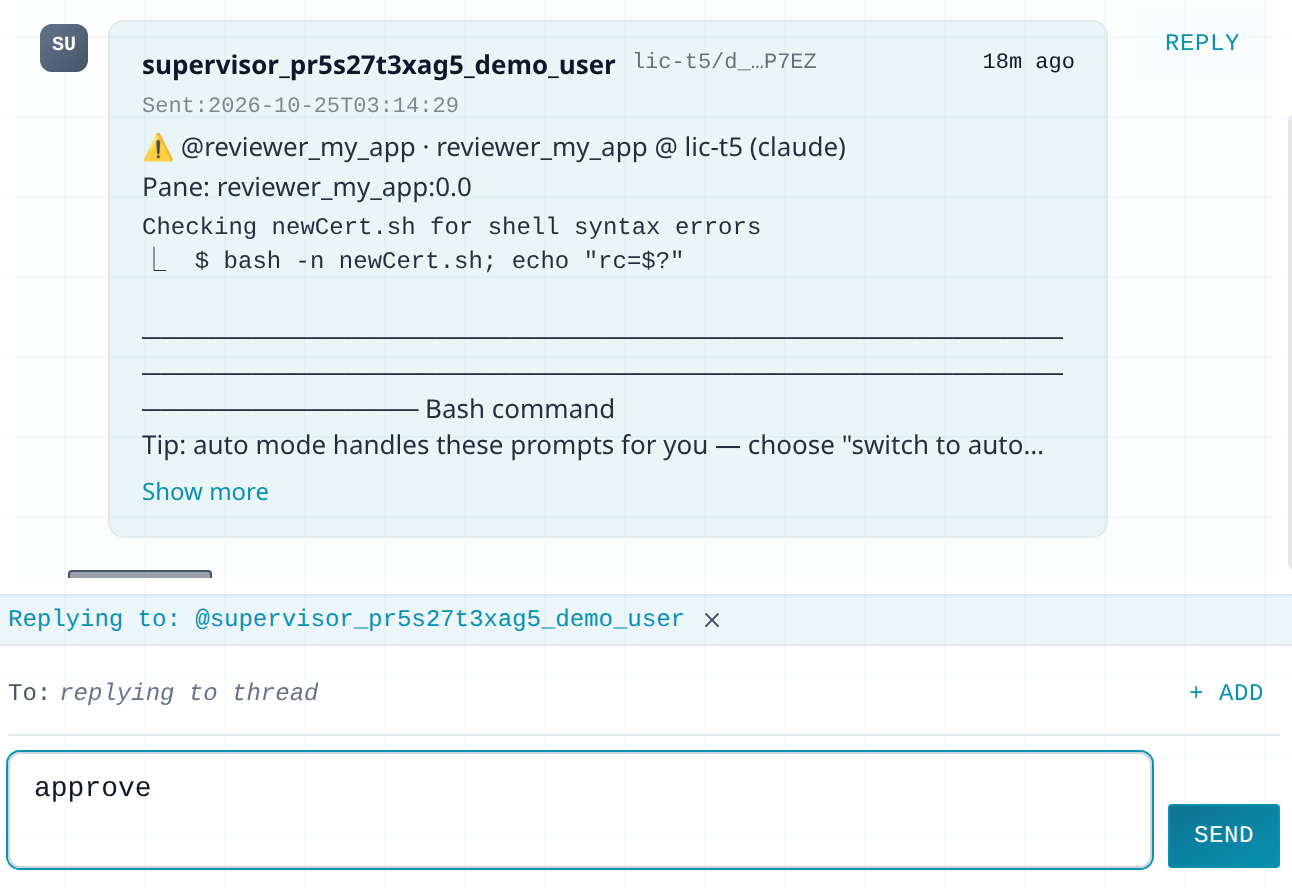
Section titled “The message”The message looks like this:
⚠ @impl_api · impl-api @ my-laptop (claude)
Pane: impl_api:0.0
  Bash command    npm run test:integration  Do you want to proceed?  ❯ 1. Yes    2. Yes, and don't ask again for: npm run test:integration    3. Yes, and switch to auto mode    4. No
⚠ Pane default (bare Enter): 1. YesReply: approve (sends "1" once, or "y"/"Y") · deny (sends "4") · or an on-screen option digit (e.g. "2")Inspect: thrum tmux capture impl_api(reminder 1/6 · my-app · claude.tool_confirmation · 5m ago)
You can ignore the Pane:, Inspect: and (reminder …) lines.
In My Inbox, the message is cut short. Click Show more to see the Reply line. Your agent names will differ from the screenshot:
To answer a message:
- Open My Inbox and find the message from the sender whose name starts with
supervisor_. - Click Reply on that message.
- Type
approveordenyand click Send. The Reply line in the message lists everything Thrum accepts, including a choice number such as2. Thrum presses the matching key for the agent. Words like “yes please” do not count. - Check it worked. The agent’s Terminal tab shows it running again.
If no message arrives within about 7 minutes, your coordinator may have answered it already. Check the agent’s Terminal tab.
You can tell your coordinator your policy, for example “Approve test runs. Ask me before anything that deletes files or touches the network.” Then it can answer the messages that fit.
My Inbox gets the message once. If nobody answers, Thrum keeps reminding your coordinator, and after the last reminder the agent’s card shows stuck.
Free and Pro
Section titled “Free and Pro”Reading a prompt in the Terminal tab is Free. Answering with the keypad is Pro. Answering a message in My Inbox works on Free and Pro. On Free you can also answer from your own terminal with thrum tmux connect, as above.
Next steps
Section titled “Next steps”- Watch your agents in the web UI: My Inbox and the Terminal tab.
- Run agents in tmux: why agents run in tmux sessions.